> ## Documentation Index
> Fetch the complete documentation index at: https://docs.spicerack.gg/llms.txt
> Use this file to discover all available pages before exploring further.
# Player Management
> View your players, create tags, and send communications
# Player Management and Communications
Managing your players and communicating with them effectively is a crucial part of running successful events. This guide will help you understand how to use the player management and communication tools.
## Player List
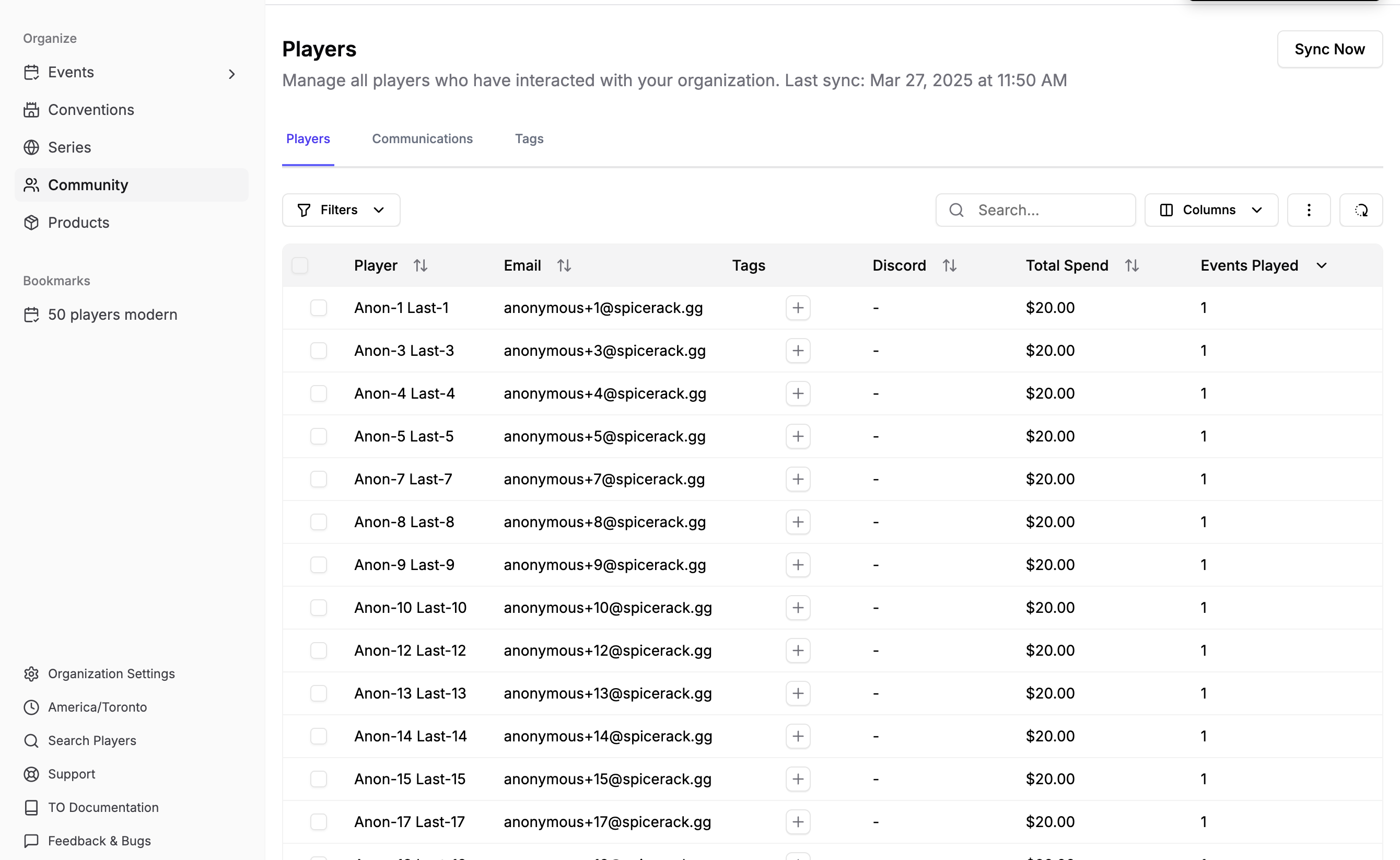
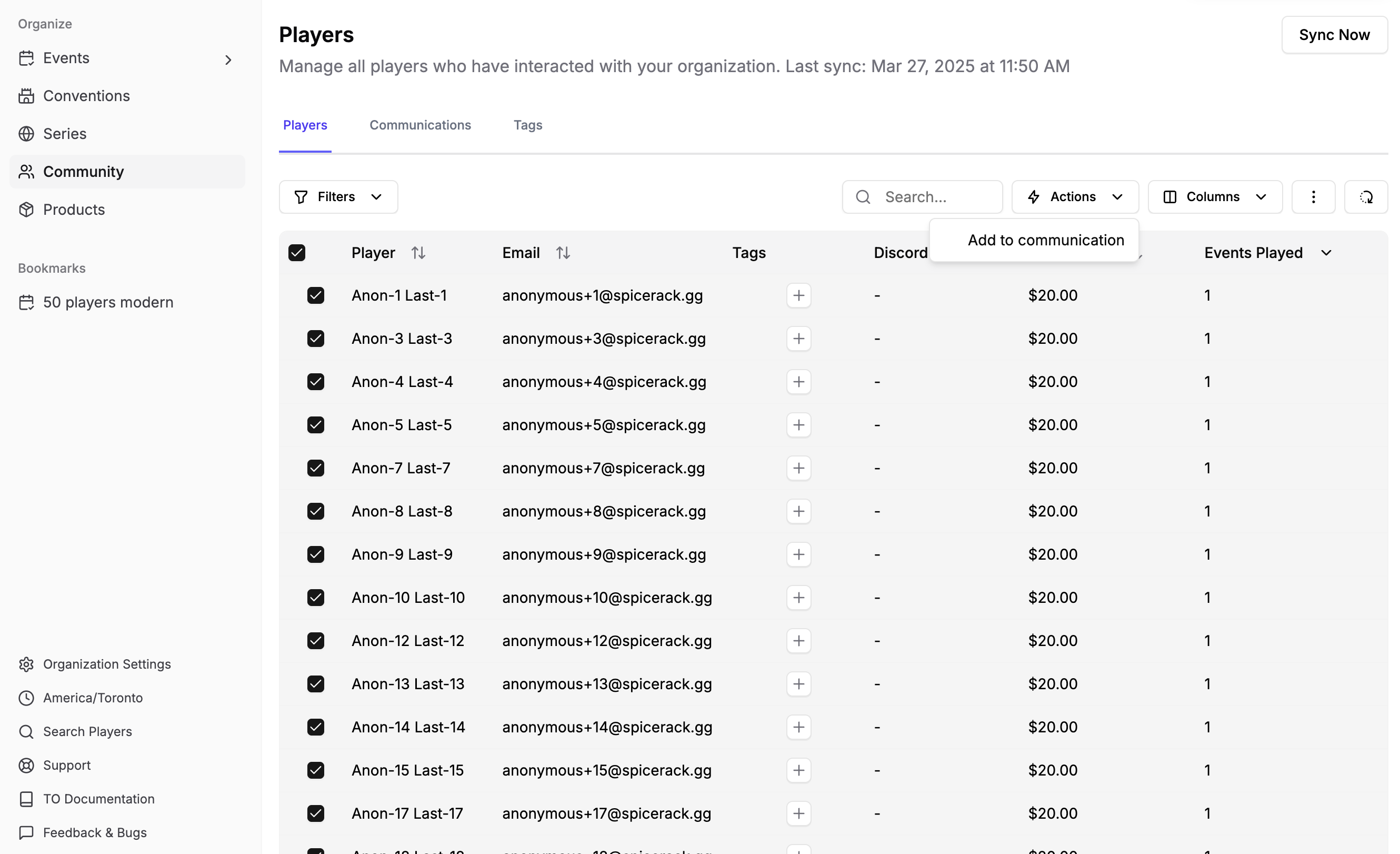
The player list shows all players who have participated in your events. Each player entry includes:
* Player name
* Email address
* Tags (for organization)
* Discord username (if connected)
* Total spend
* Number of events played
 ### Syncing Player Data
Your player list automatically updates once per day at 8:00 PM EST. You can also manually sync the data by clicking the "Sync Now" button at the top of the page.
## Player Tags
Tags help you organize and segment your players. You can create custom tags with different colors to categorize players based on any criteria you choose.
### Syncing Player Data
Your player list automatically updates once per day at 8:00 PM EST. You can also manually sync the data by clicking the "Sync Now" button at the top of the page.
## Player Tags
Tags help you organize and segment your players. You can create custom tags with different colors to categorize players based on any criteria you choose.
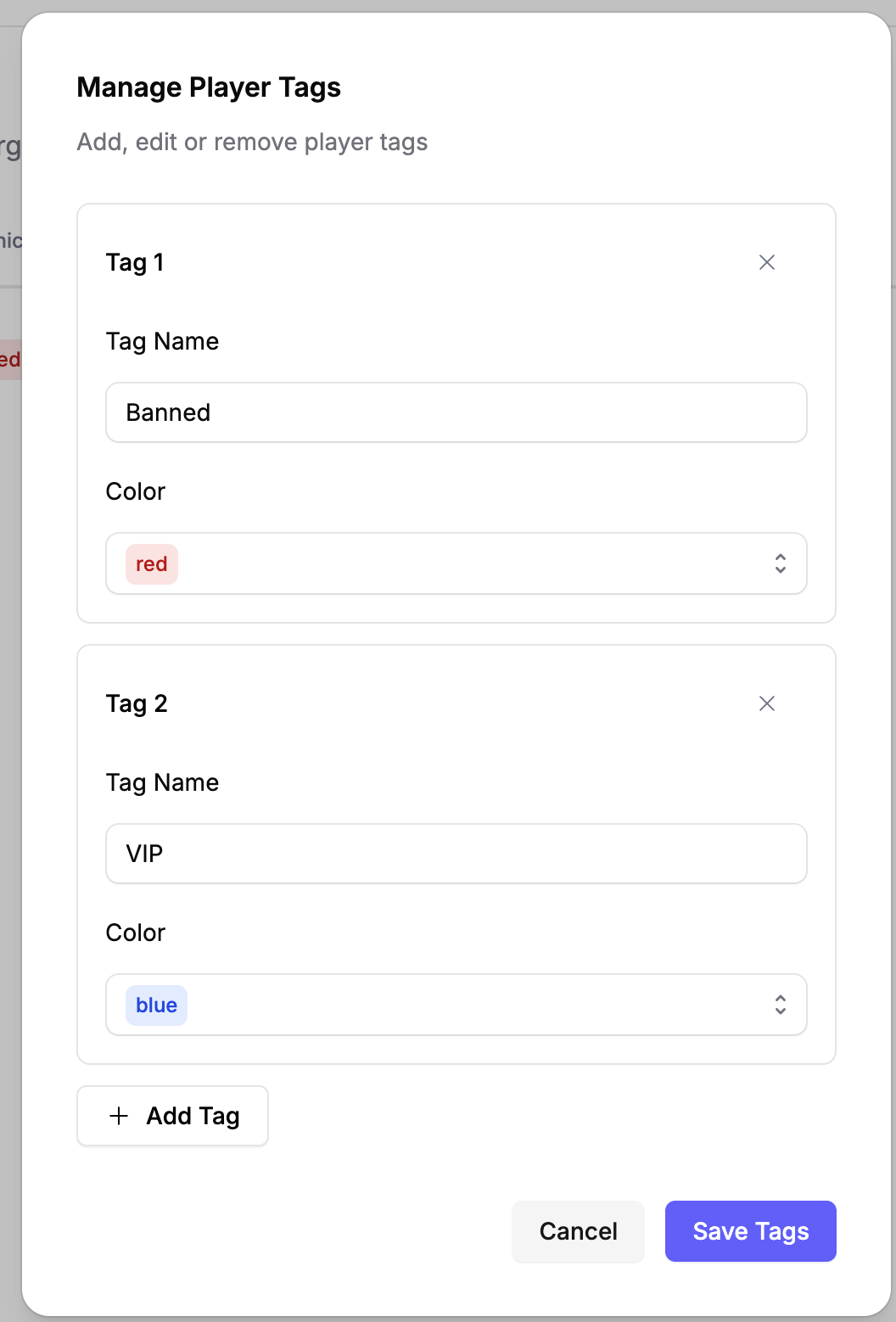 Common uses for tags include:
* VIP players
* New players
* Banned players
* Tournament regulars
* Specific format preferences
You can assign multiple tags to each player and filter your player list by tags.
## Communications
The communications system lets you send targeted emails to your players. You can create drafts, schedule messages for later, and track sent communications.
Common uses for tags include:
* VIP players
* New players
* Banned players
* Tournament regulars
* Specific format preferences
You can assign multiple tags to each player and filter your player list by tags.
## Communications
The communications system lets you send targeted emails to your players. You can create drafts, schedule messages for later, and track sent communications.
 ### Creating Communications
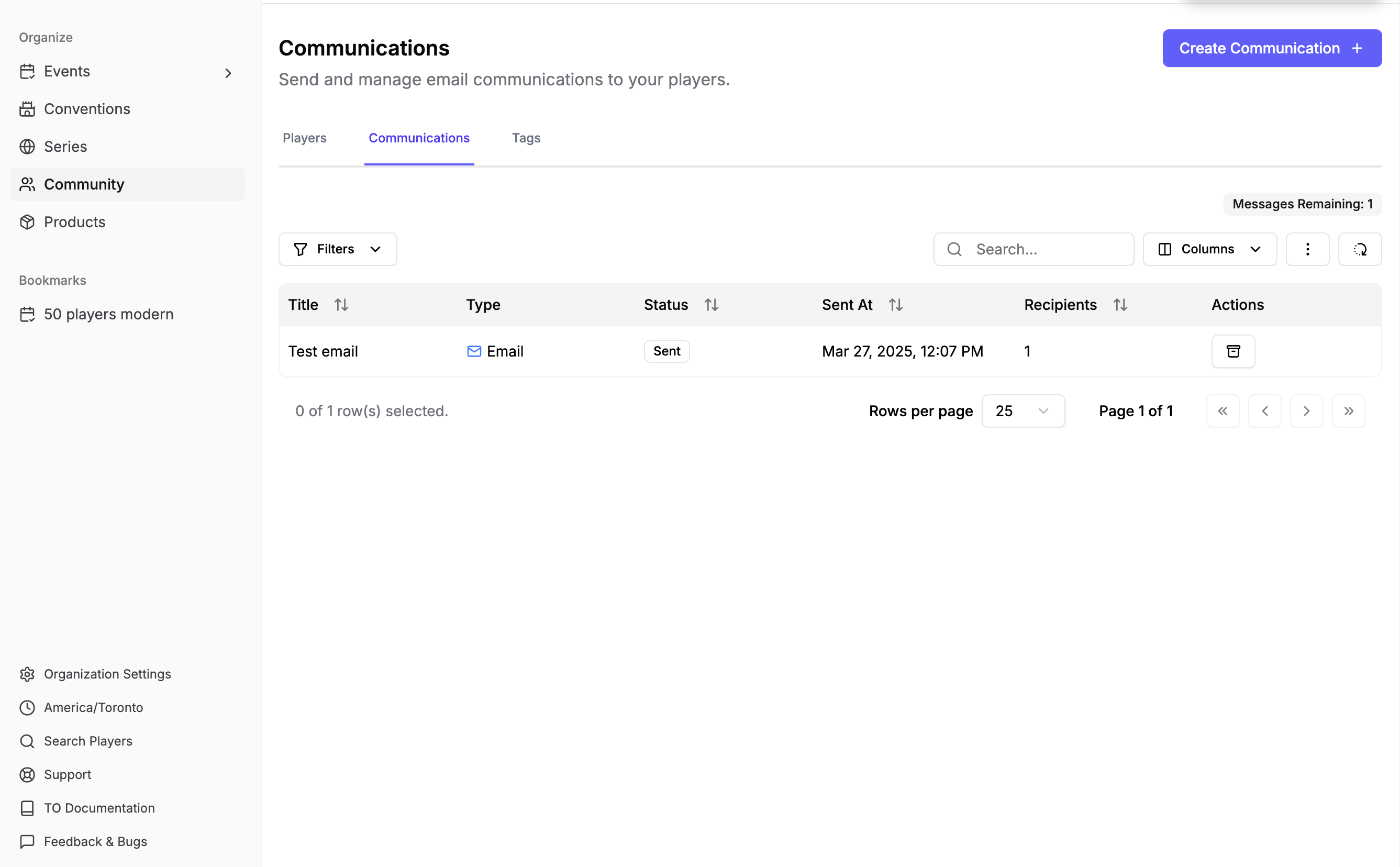
When creating a new communication:
1. Enter a title (for your reference)
2. Write your email subject line
3. Compose your message
4. Add a call-to-action button (optional)
5. Select your recipients
### Creating Communications
When creating a new communication:
1. Enter a title (for your reference)
2. Write your email subject line
3. Compose your message
4. Add a call-to-action button (optional)
5. Select your recipients
 ### Managing Communications
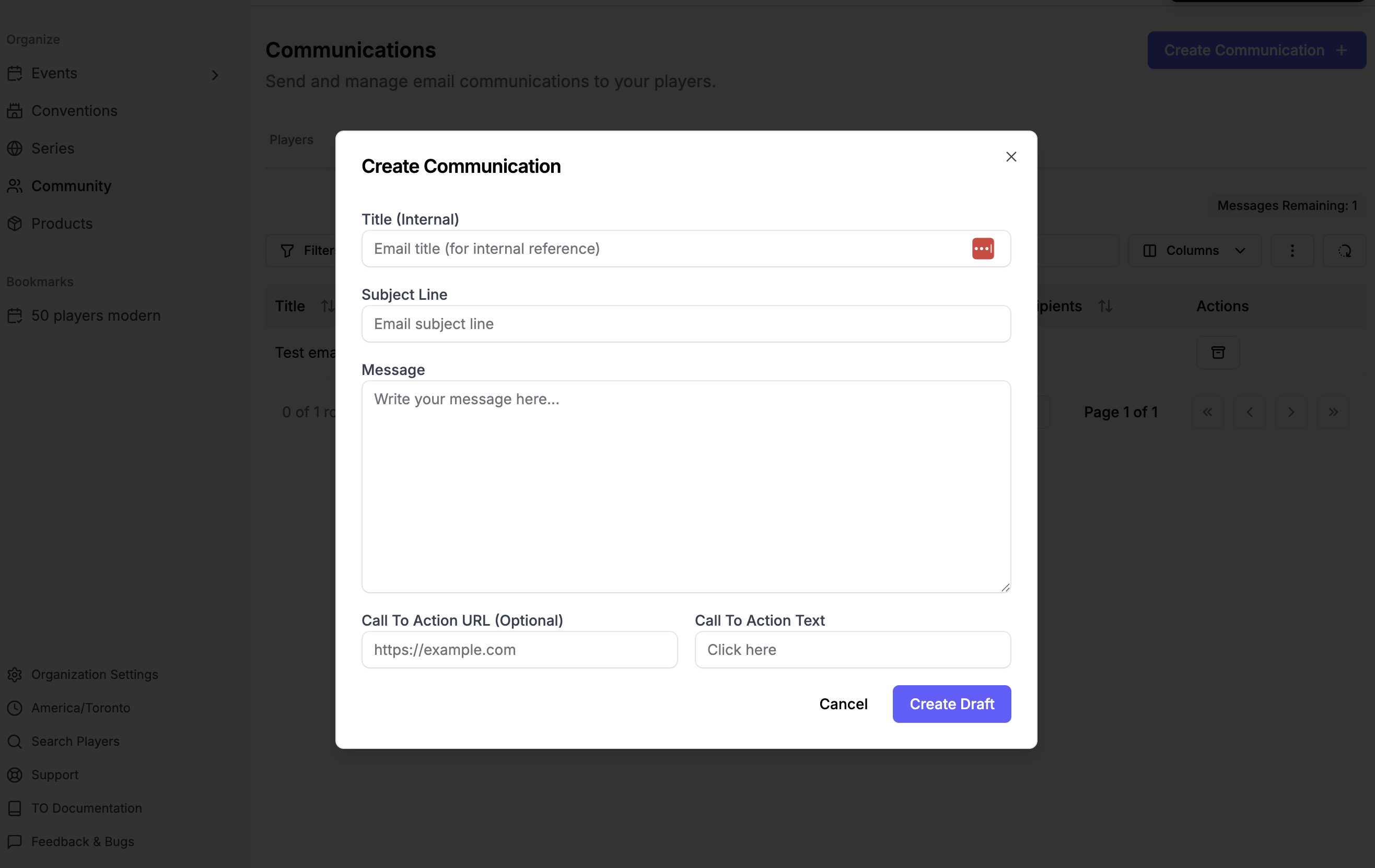
Your communications list shows:
* Message title
* Type (Email)
* Status (Draft, Scheduled, Sent, or Archived)
* Sent date
* Number of recipients
* Available actions
### Managing Communications
Your communications list shows:
* Message title
* Type (Email)
* Status (Draft, Scheduled, Sent, or Archived)
* Sent date
* Number of recipients
* Available actions
 Each communication has a status:
* **Draft**: Still being edited, not yet sent
* **Scheduled**: Set to send at a future time
* **Sent**: Successfully delivered to recipients
* **Archived**: Completed communications you've archived
### Communication Limits
Your account has a monthly limit on the number of messages you can send. The remaining message count is displayed at the top of your communications list.
### Tips for Effective Communication
* Keep messages clear and concise
* Use a descriptive subject line
* Test emails before sending to large groups
* Consider timing when scheduling messages
* Use tags to send targeted communications to specific player groups
Each communication has a status:
* **Draft**: Still being edited, not yet sent
* **Scheduled**: Set to send at a future time
* **Sent**: Successfully delivered to recipients
* **Archived**: Completed communications you've archived
### Communication Limits
Your account has a monthly limit on the number of messages you can send. The remaining message count is displayed at the top of your communications list.
### Tips for Effective Communication
* Keep messages clear and concise
* Use a descriptive subject line
* Test emails before sending to large groups
* Consider timing when scheduling messages
* Use tags to send targeted communications to specific player groups