> ## Documentation Index
> Fetch the complete documentation index at: https://docs.spicerack.gg/llms.txt
> Use this file to discover all available pages before exploring further.
# Event Creation & Setup
> How to create and set up events on Spicerack
### Event creation
* **Creating a signup page for an existing event**
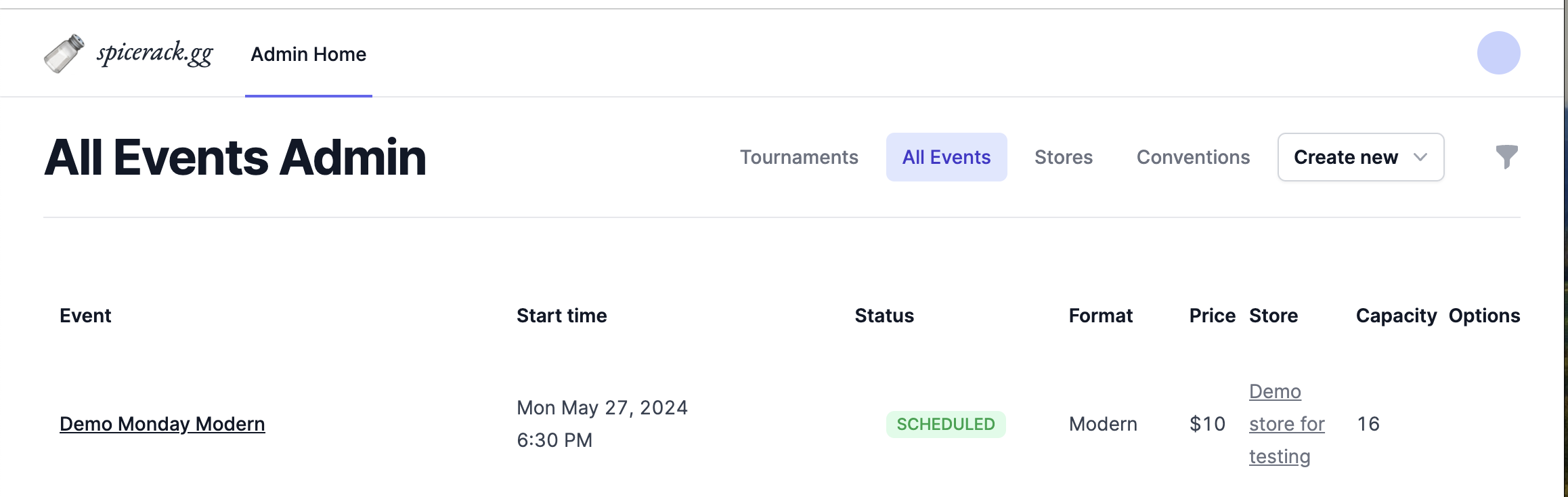
* [https://www.spicerack.gg/admin](https://www.spicerack.gg/admin), navigate to "All Events" and click into the event
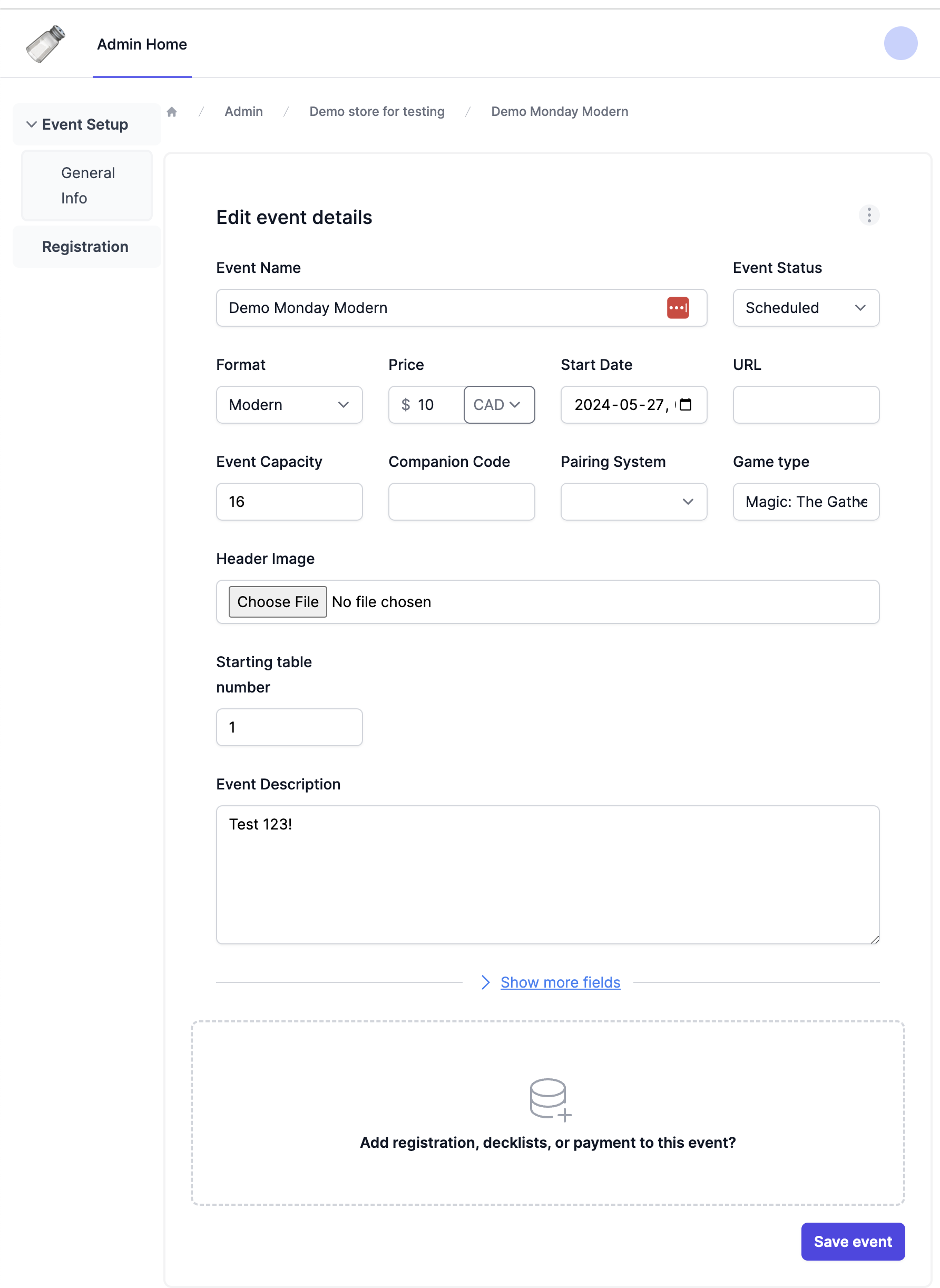
 * Click "Add registration, decklists, or payment to this event?" at the bottom
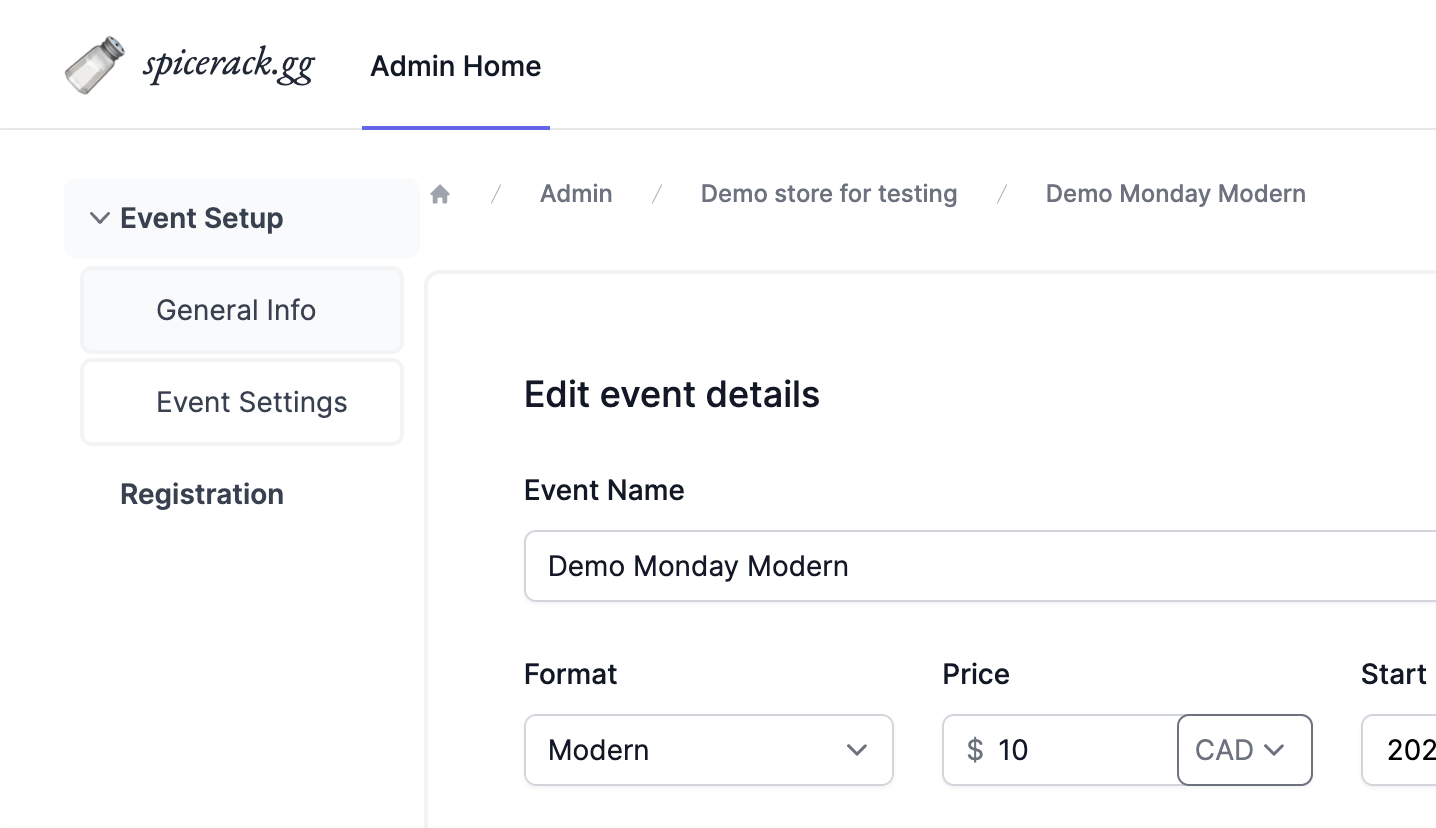
 * A new tab will show up on the left — "Event Settings". See the below sections for the how to set up payment and decklists
 ### Tournament Structure Setup
* **Choosing your tournament structure**
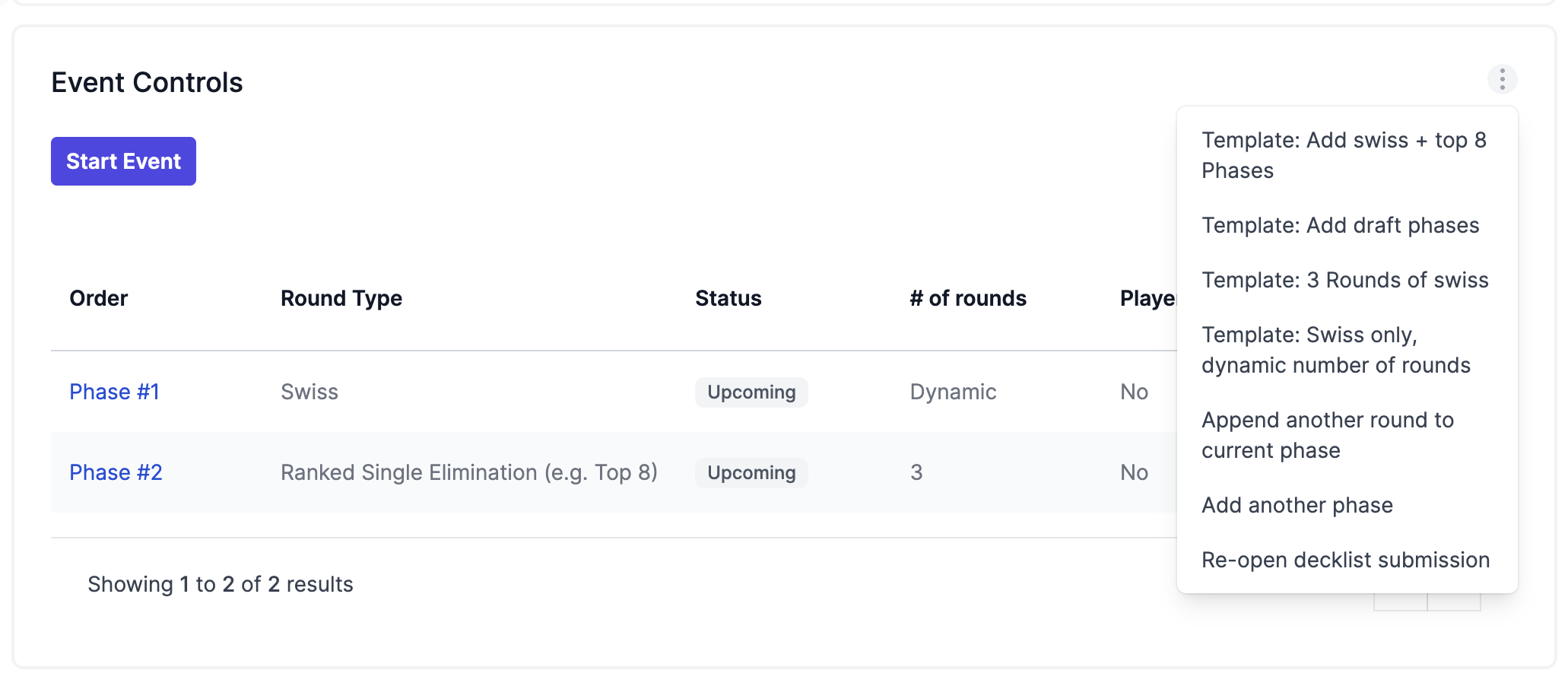
On Spicerack, tournaments consist of "Phases", which each have sets of rounds. For a swiss + top 8, that would be two phases: a swiss phase and a top 8 phase. For a 2-day tournament with a cut to top 8, you might have 3 phases — one for each day, then the top 8.
In the controls tab, the three-dot menu has some templates for common phases. You can always add more phases with the Add Phase button as needed.
### Tournament Structure Setup
* **Choosing your tournament structure**
On Spicerack, tournaments consist of "Phases", which each have sets of rounds. For a swiss + top 8, that would be two phases: a swiss phase and a top 8 phase. For a 2-day tournament with a cut to top 8, you might have 3 phases — one for each day, then the top 8.
In the controls tab, the three-dot menu has some templates for common phases. You can always add more phases with the Add Phase button as needed.
 Created phases will look like this:
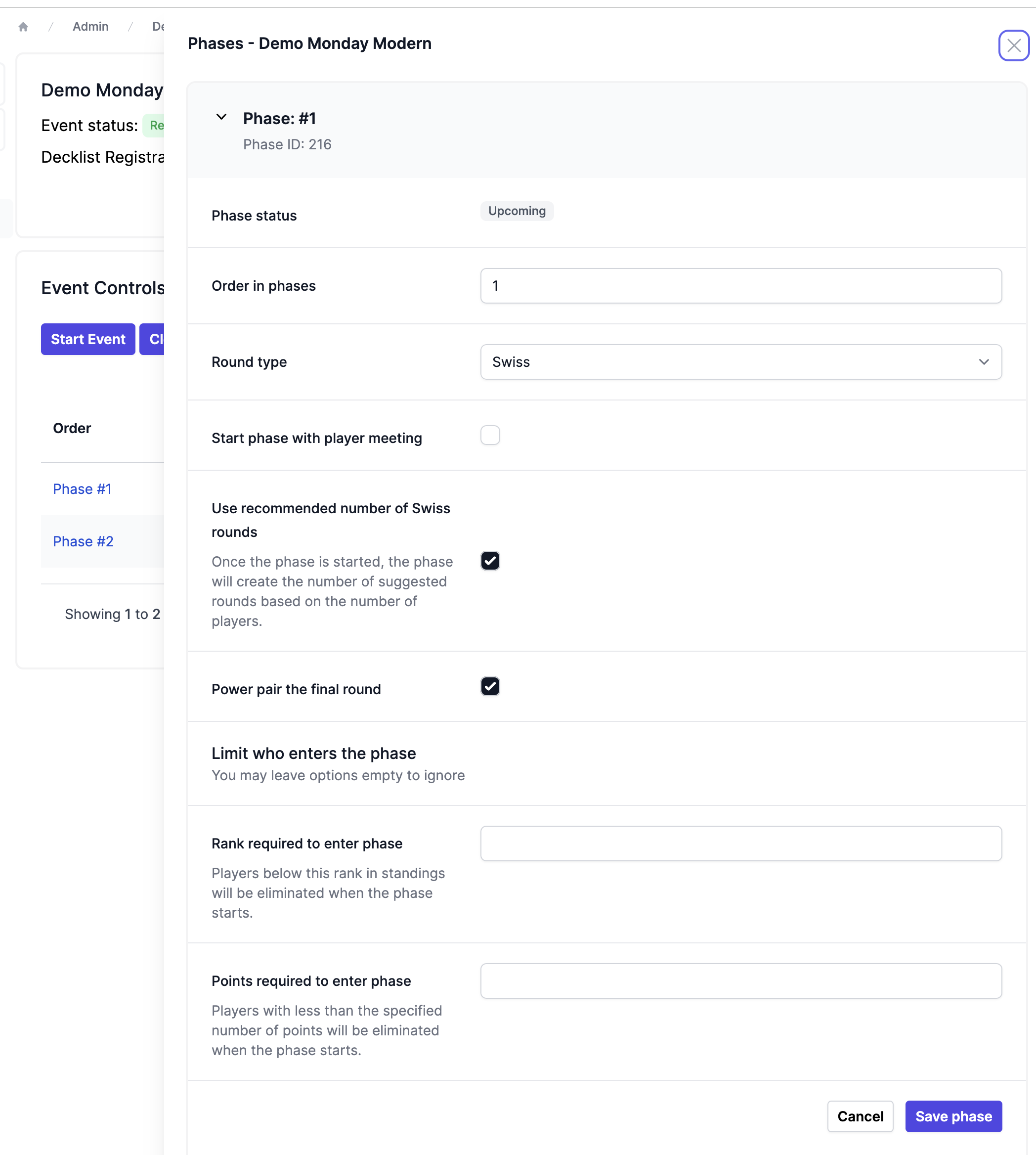
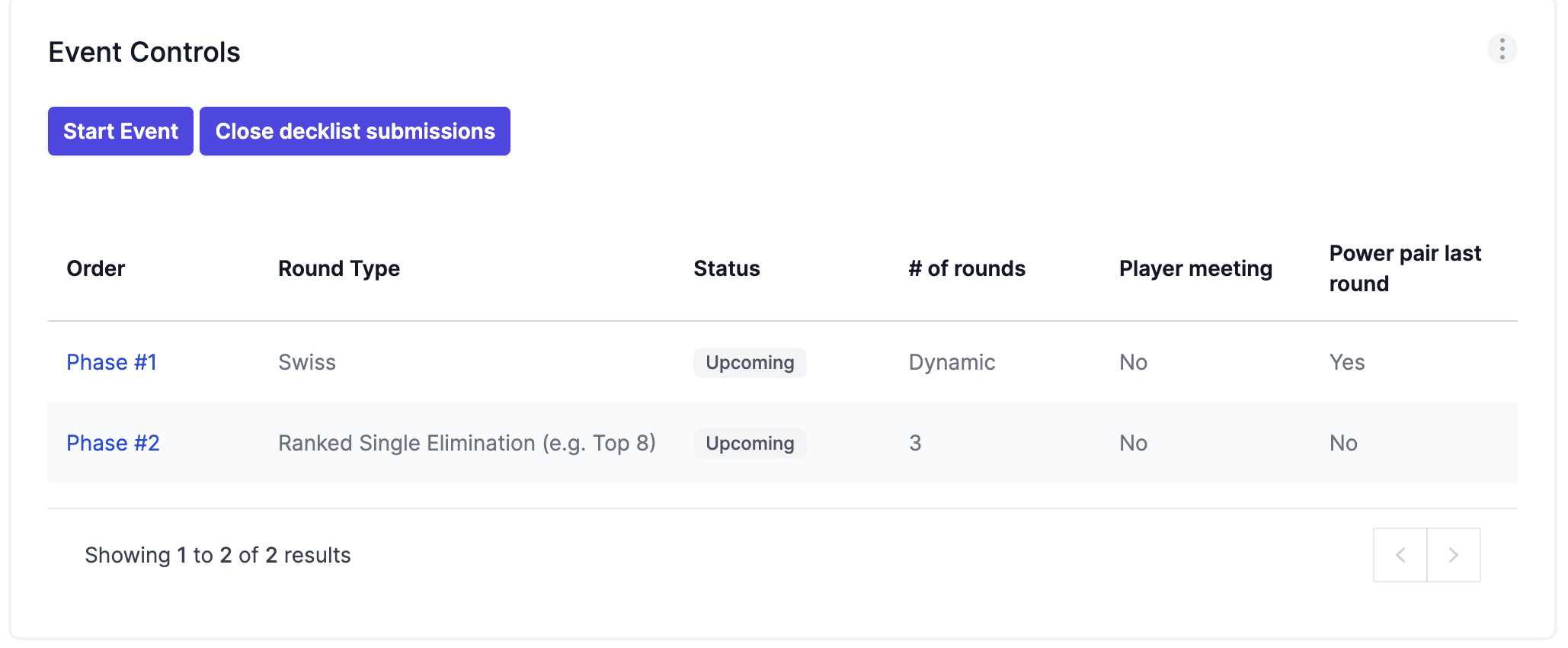 Clicking the blue name will open up the options to make changes as well
 ### Starting the Event
* **Starting the event and managing decklists**
In the controls tab, you can start the event and separately close decklist submission. Starting the event will close registration. You need at least 1 phase to start an event.
### Starting the Event
* **Starting the event and managing decklists**
In the controls tab, you can start the event and separately close decklist submission. Starting the event will close registration. You need at least 1 phase to start an event.
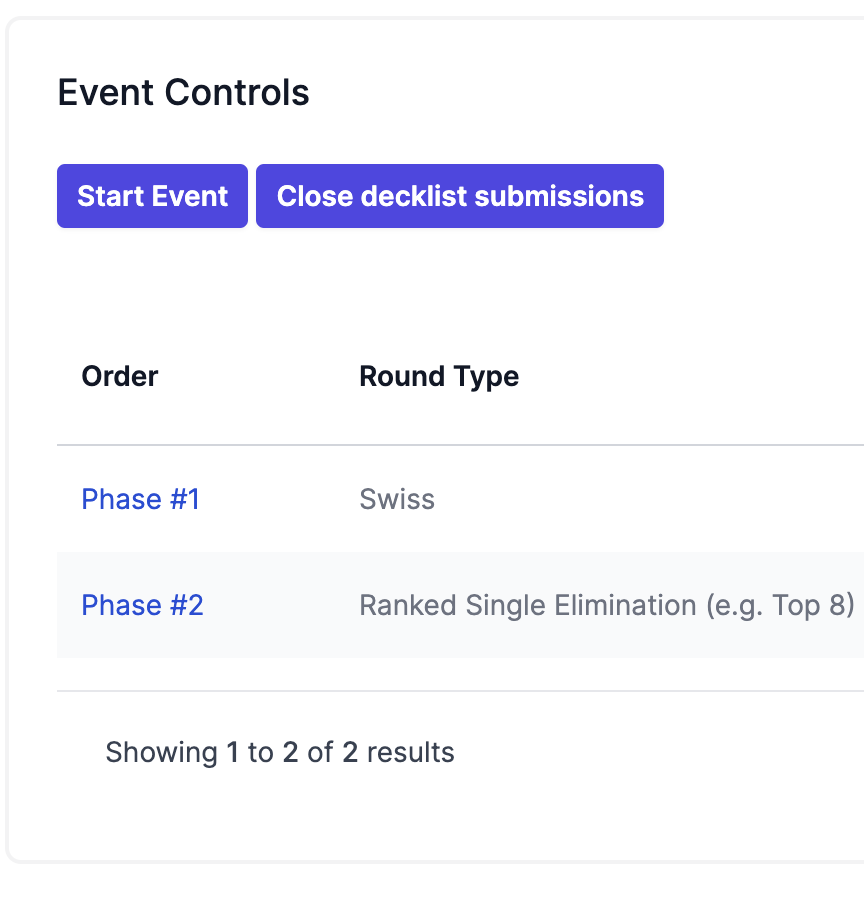 If you closed decklist submission and want to re-open it, you can do so in the three dot menu in the controls tab