> ## Documentation Index
> Fetch the complete documentation index at: https://docs.spicerack.gg/llms.txt
> Use this file to discover all available pages before exploring further.
# Conventions & Series
> How to manage conventions and series on Spicerack
## Conventions & Series
### Creating Conventions
* **Creating your convention**
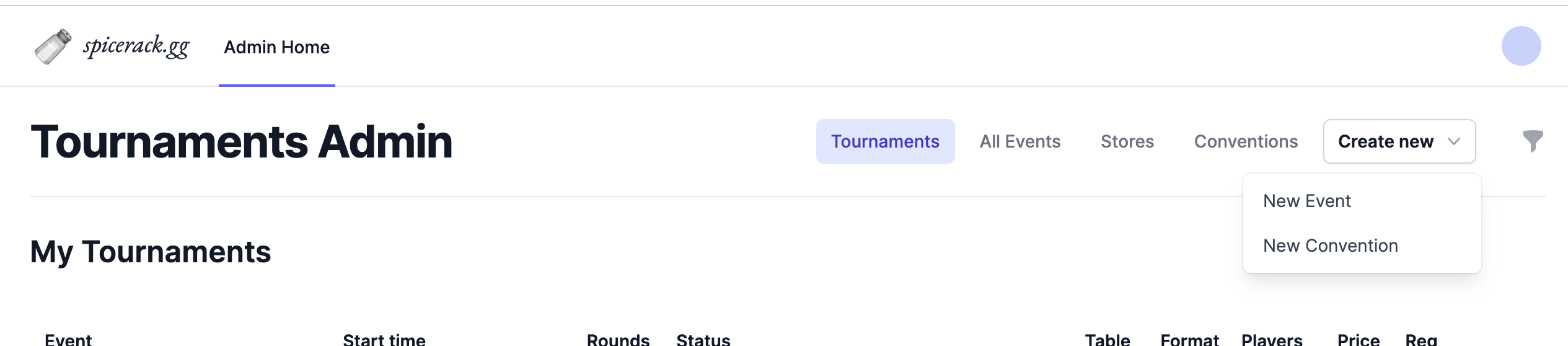
[https://www.spicerack.gg/admin](https://www.spicerack.gg/admin), you can create a convention by selecting Create new > New Convention.
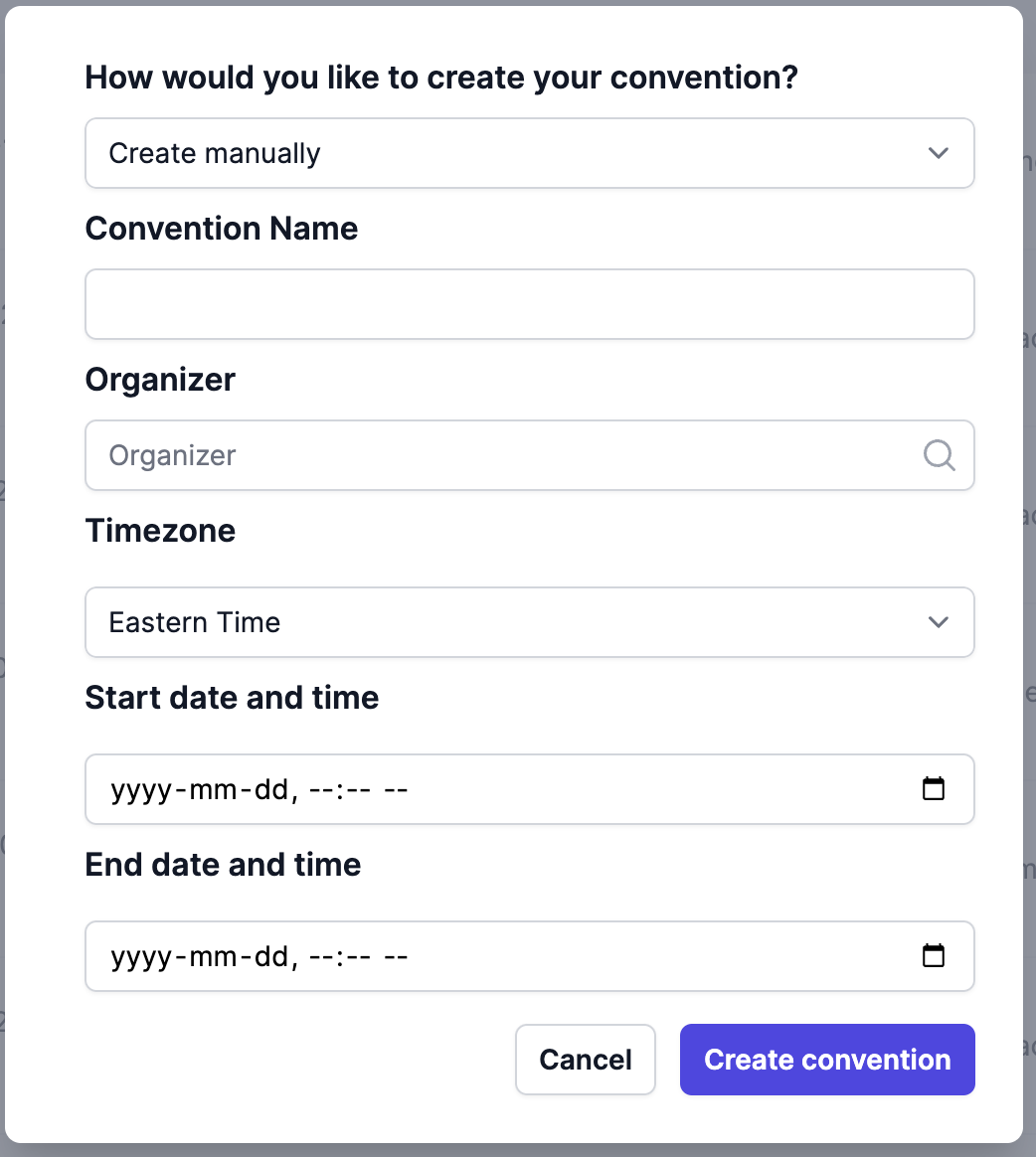
 The system will prompt for you for some basic info to get started. The Organizer field can be any Store/organization you have access to in Spicerack.
 * **Filling out your convention's details**
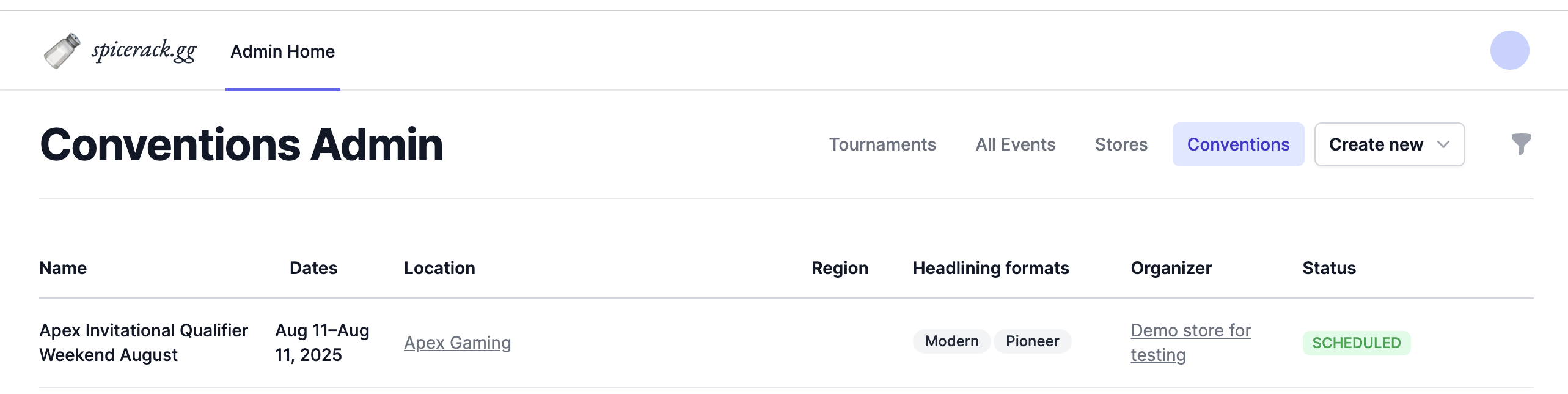
Once created, your convention will be available in the Conventions tab of [https://www.spicerack.gg/admin](https://www.spicerack.gg/admin)
* **Filling out your convention's details**
Once created, your convention will be available in the Conventions tab of [https://www.spicerack.gg/admin](https://www.spicerack.gg/admin)
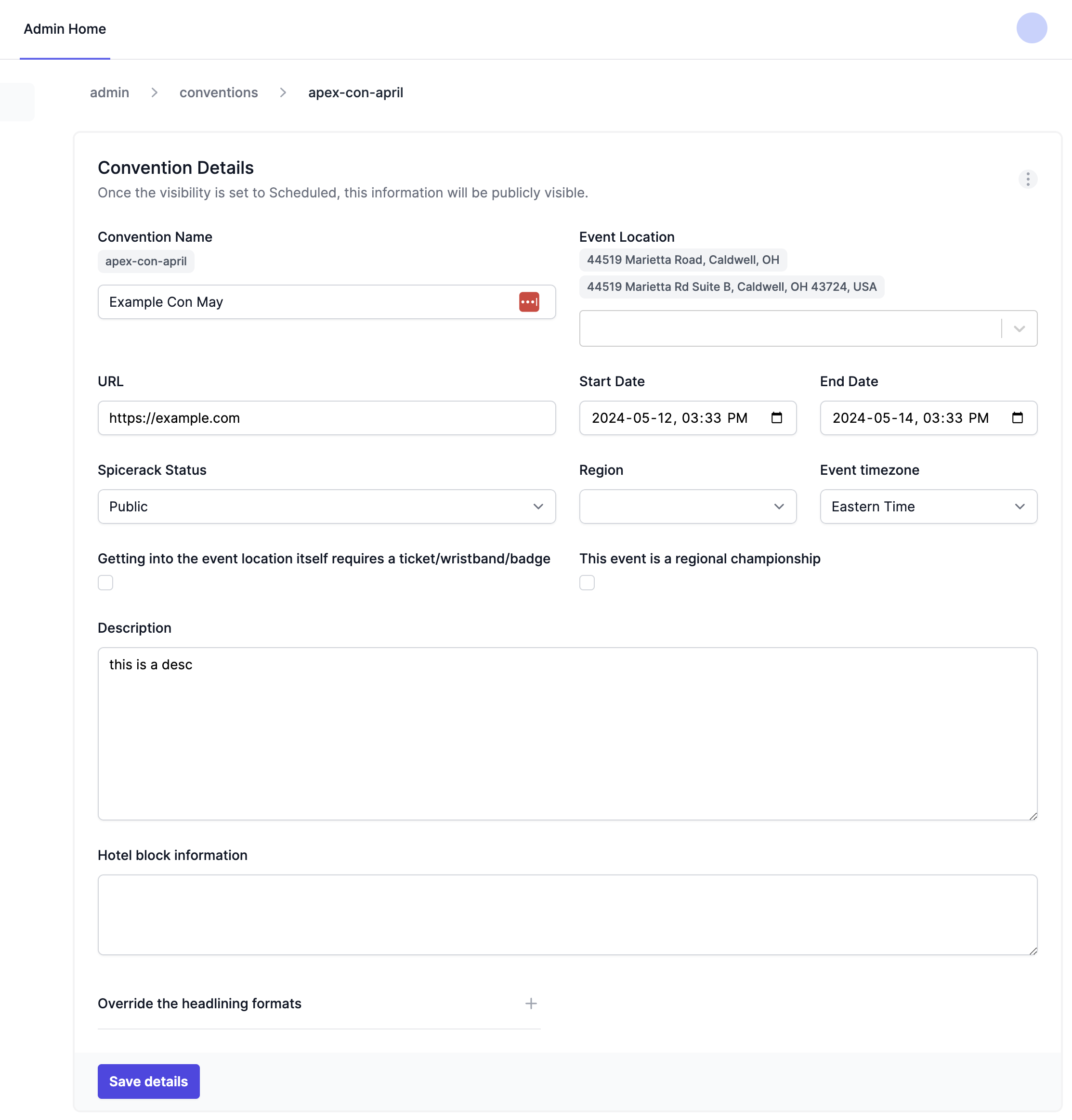
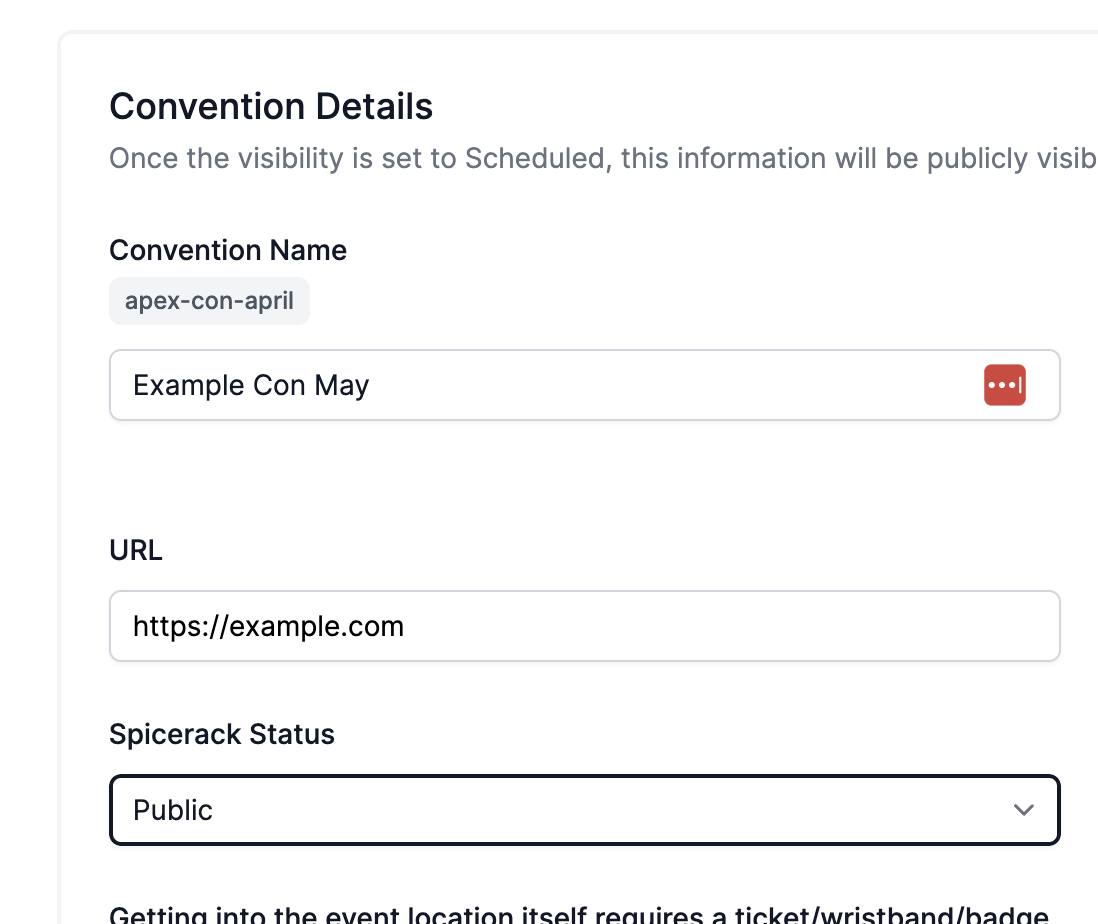
 Clicking into it will give you more details to fill out for players:
 * **Announcing your convention before you have events set up**
The "Spicerack Status" field has some helpful options if you wish to post your convention before you have all the events in
* **Announcing your convention before you have events set up**
The "Spicerack Status" field has some helpful options if you wish to post your convention before you have all the events in
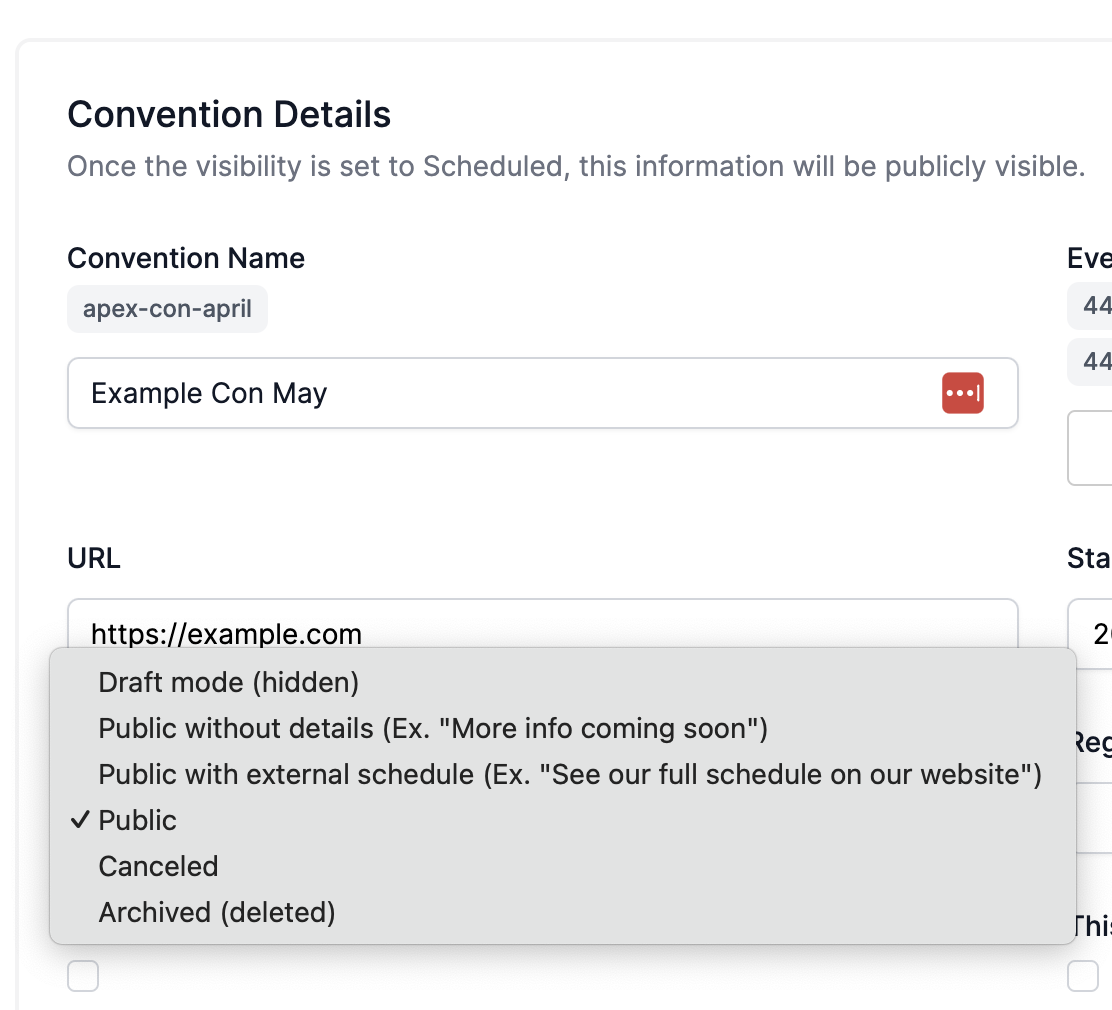 * "Public without details" show the convention to players on the app and website, but won't link to anything
* "Public with external schedule" will do the same as above, but will redirect players to the website that is set in the "URL" field of the convention page
* "Public" will take players to a spicerack page with a list of all the events you have set on the event.
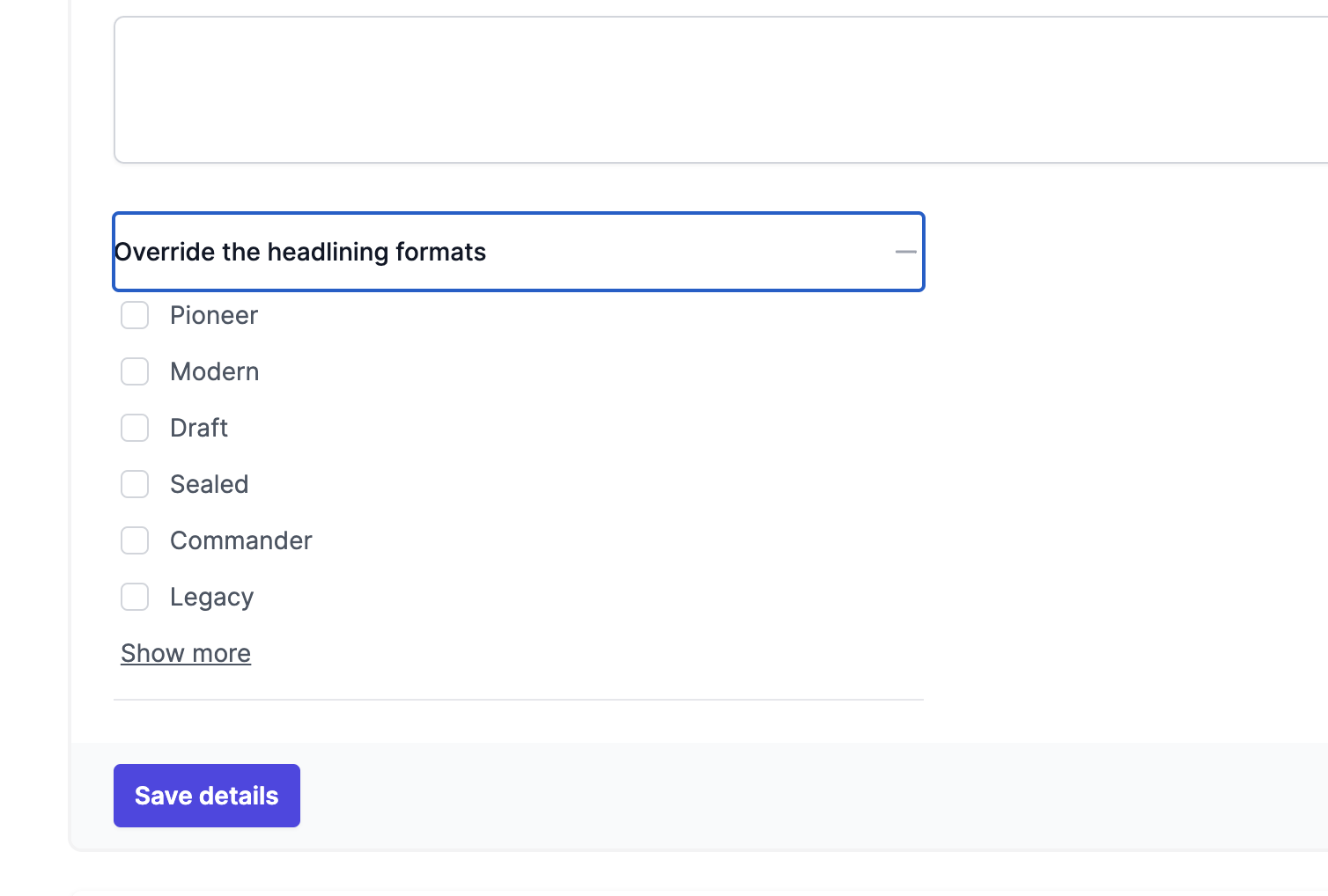
If you know the formats that are going to be headliners for the con, but don't want to post event details just yet, you can use the "Override the headlining formats" dropdown to communicate to players what your headliners intend to be.
* "Public without details" show the convention to players on the app and website, but won't link to anything
* "Public with external schedule" will do the same as above, but will redirect players to the website that is set in the "URL" field of the convention page
* "Public" will take players to a spicerack page with a list of all the events you have set on the event.
If you know the formats that are going to be headliners for the con, but don't want to post event details just yet, you can use the "Override the headlining formats" dropdown to communicate to players what your headliners intend to be.
 * **Adding events to a convention**
Scrolling down on the convention page, we can add events directly to a given day that the con is running.
* **Adding events to a convention**
Scrolling down on the convention page, we can add events directly to a given day that the con is running.
 Clicking create new event will take you to the following page.
 This page is different from the normal event admin tournament page, and can be used primarily to quickly create a bunch of events.
You can also duplicate events in the page's three-dot menu
This page is different from the normal event admin tournament page, and can be used primarily to quickly create a bunch of events.
You can also duplicate events in the page's three-dot menu
 If "This is a headlining event" is checked, the event will be pinned to the top of events that day in the convention for players, and the event's format will be shown to players as a "headlining format"
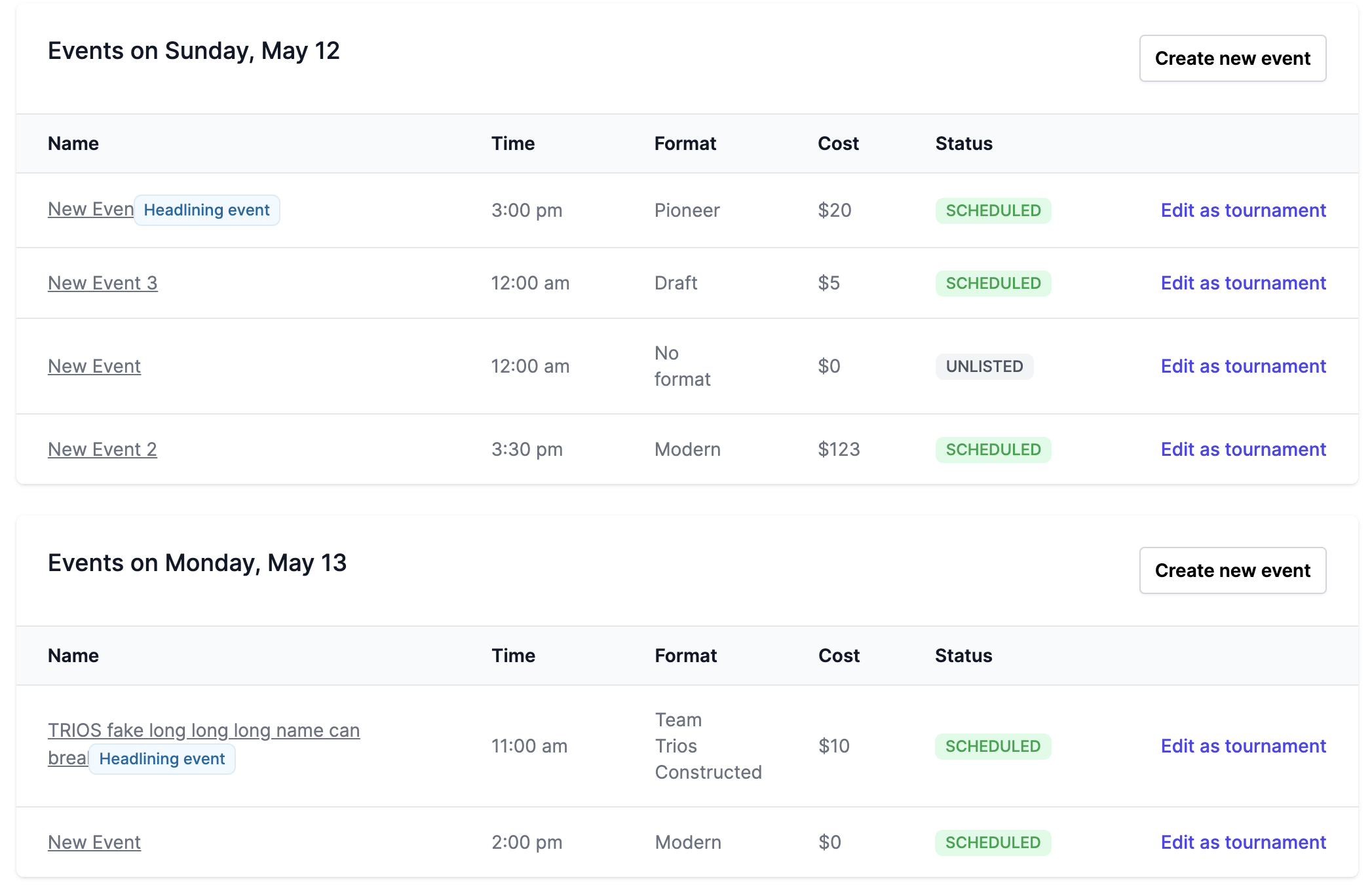
You can see your headlining events in your admin page beside the event's name
If "This is a headlining event" is checked, the event will be pinned to the top of events that day in the convention for players, and the event's format will be shown to players as a "headlining format"
You can see your headlining events in your admin page beside the event's name
 If you have existing events that are on EventLink or other tools, please reach out to the Spicerack team and we can add them to your convention for you so you don't need to create duplicates
### Convention Series
* **Creating a Series**
Go to [https://www.spicerack.gg/admin/conventions](https://www.spicerack.gg/admin/conventions#Conventions) and go to the "Convention Series" tab + hit the "Create Series" button
If you have existing events that are on EventLink or other tools, please reach out to the Spicerack team and we can add them to your convention for you so you don't need to create duplicates
### Convention Series
* **Creating a Series**
Go to [https://www.spicerack.gg/admin/conventions](https://www.spicerack.gg/admin/conventions#Conventions) and go to the "Convention Series" tab + hit the "Create Series" button
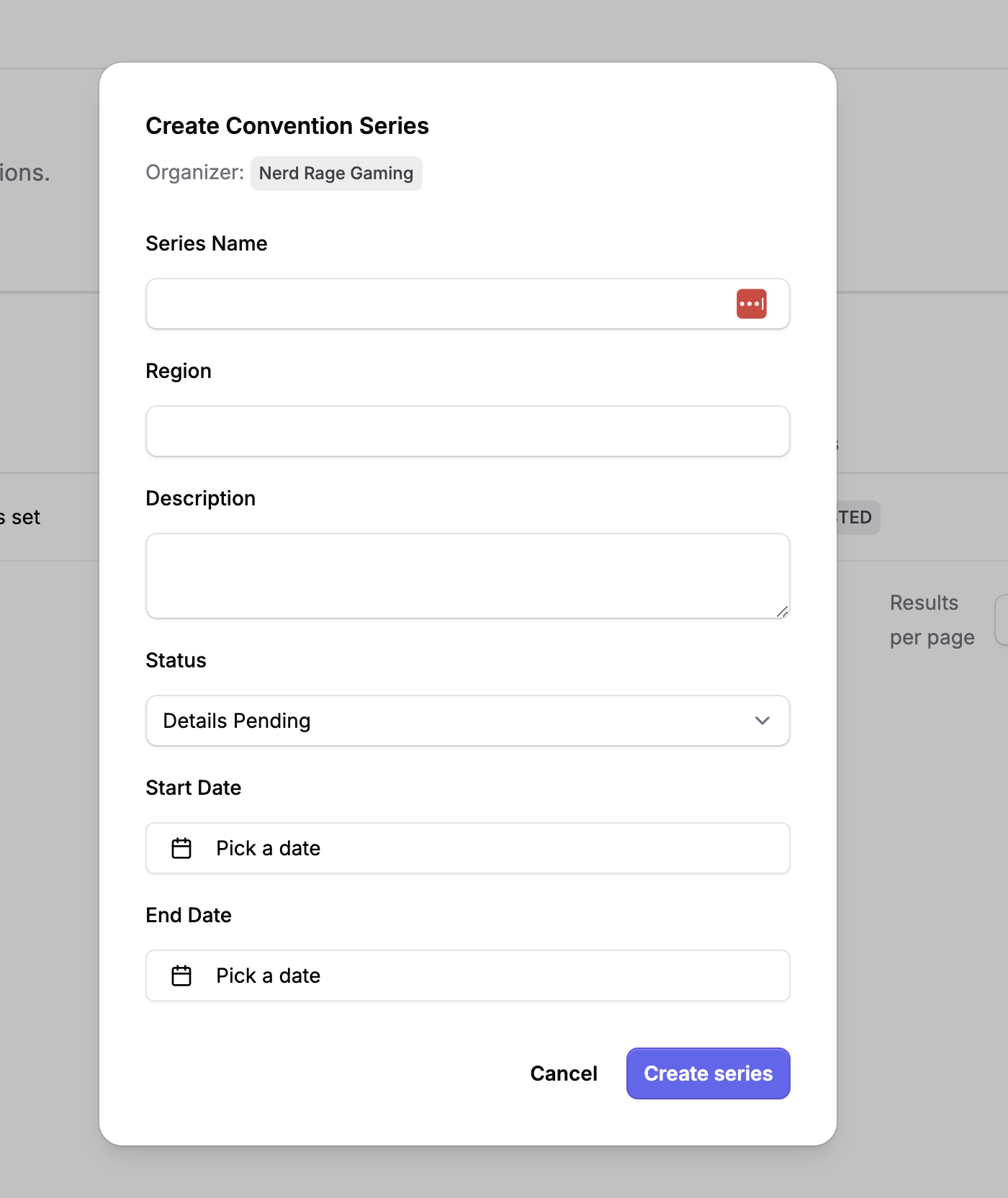 Enter in the first and last day of your entire series, region can be any location-based tag you wish to add like "West Cost US". All of this information will be viewable by players
* **Adding a new Convention to your Series**
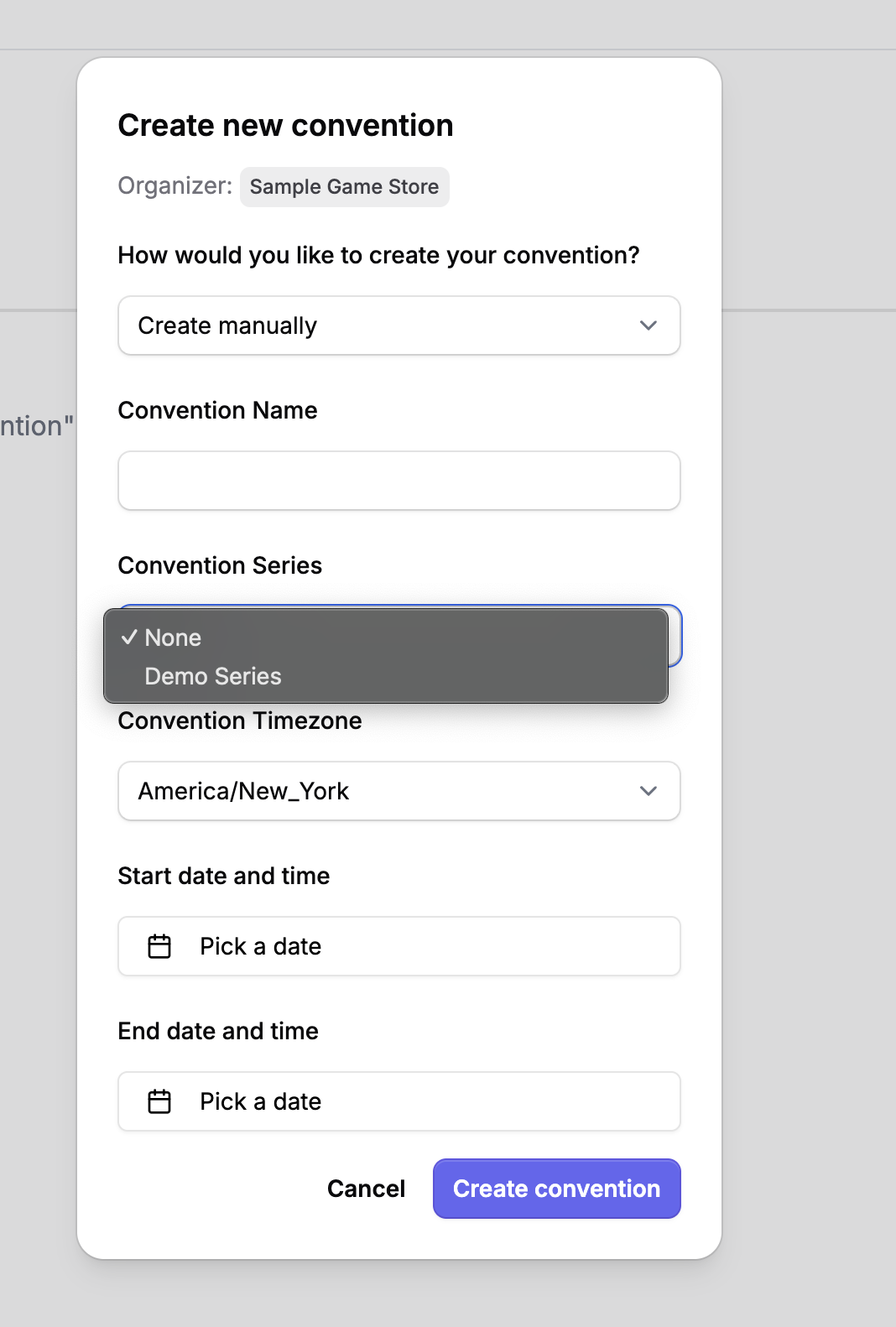
When creating a convention, you can choose it's associated series while creating it, this will cause the convention to show up on the series page once the convention's visibility is public
Enter in the first and last day of your entire series, region can be any location-based tag you wish to add like "West Cost US". All of this information will be viewable by players
* **Adding a new Convention to your Series**
When creating a convention, you can choose it's associated series while creating it, this will cause the convention to show up on the series page once the convention's visibility is public
 * **Adding an existing Convention to your Series**
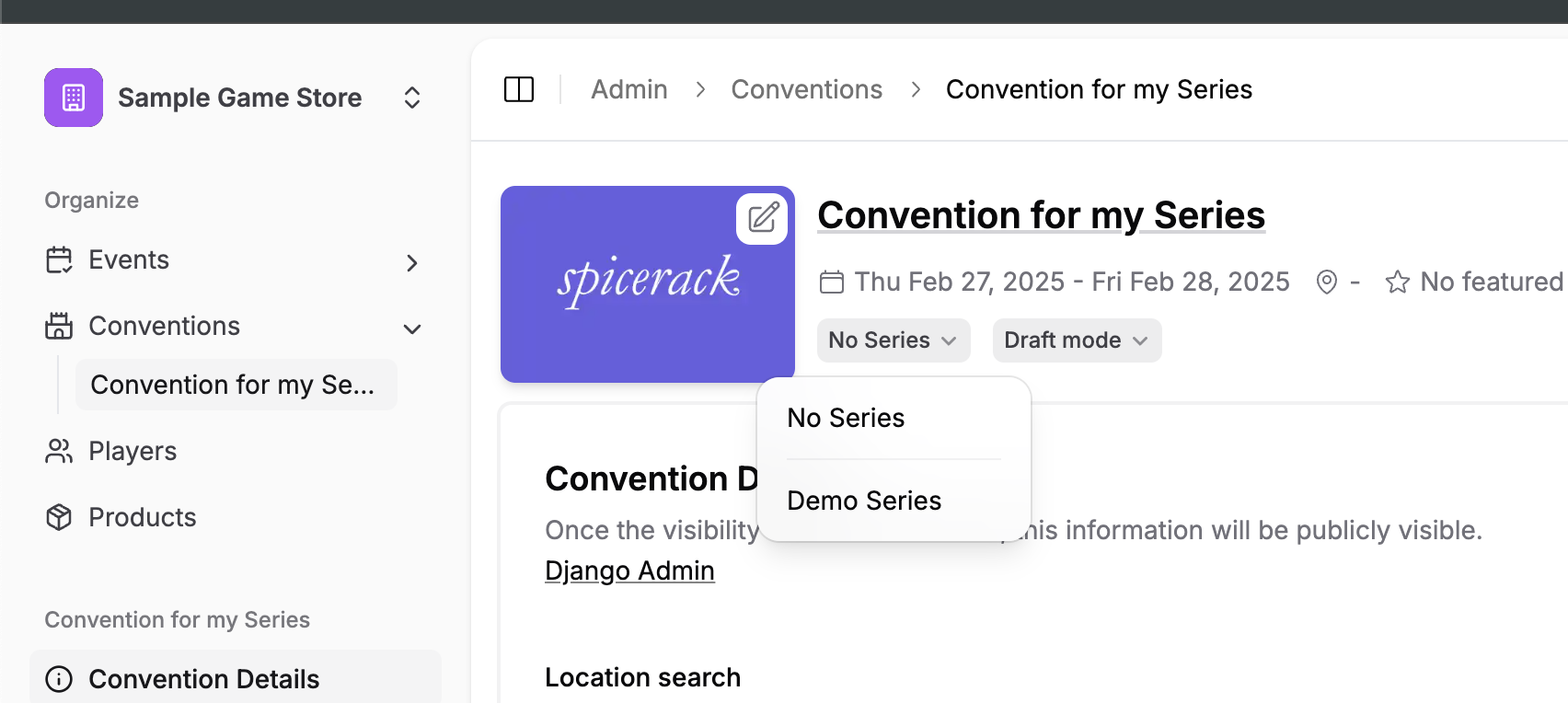
On a convention's admin page, you can choose it's series in the header
* **Adding an existing Convention to your Series**
On a convention's admin page, you can choose it's series in the header
 * **Publishing a Series**
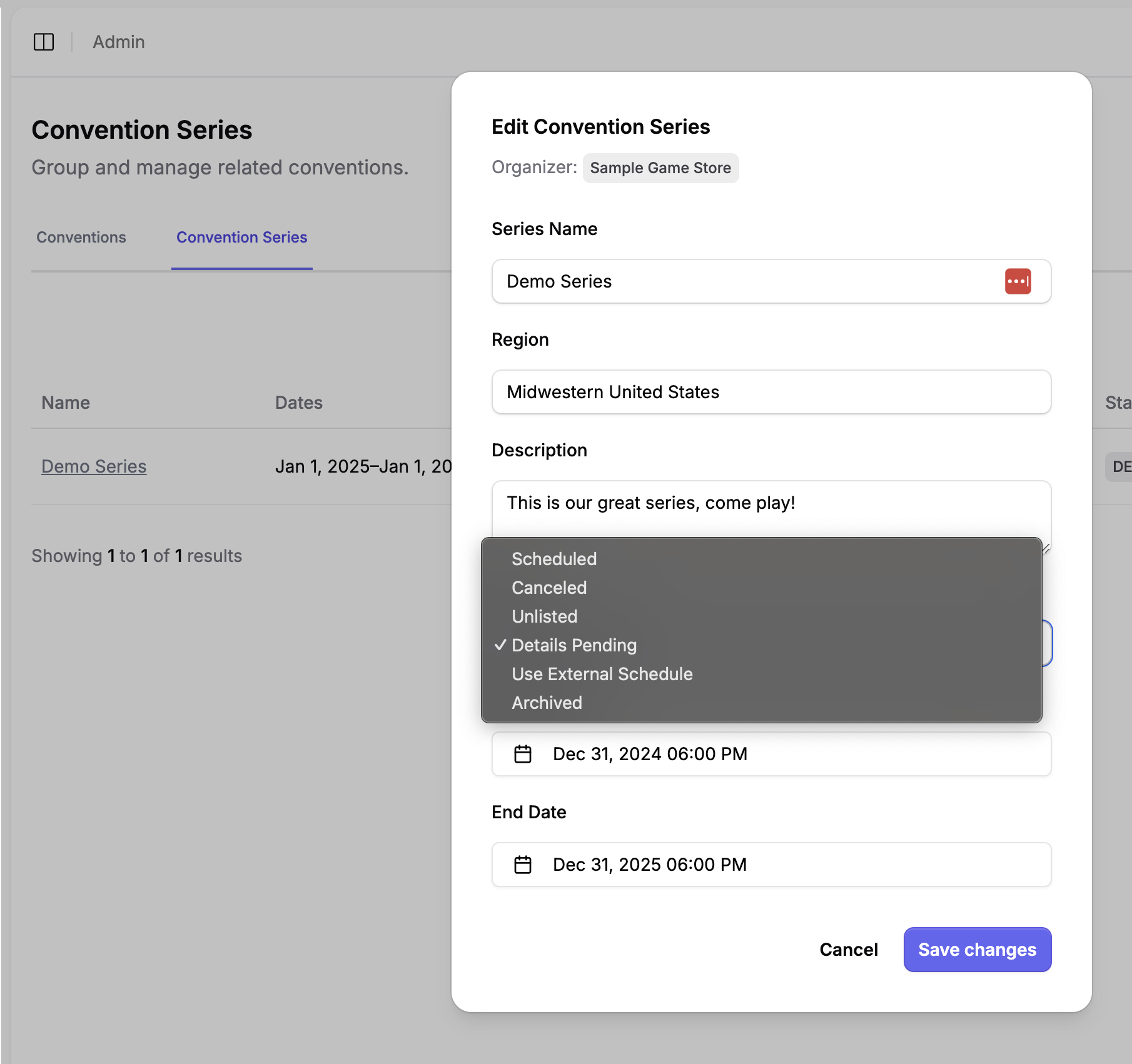
If you click on the name of your series, you'll be able to edit its information. When you're ready to go live, change the status to "Scheduled"
* **Publishing a Series**
If you click on the name of your series, you'll be able to edit its information. When you're ready to go live, change the status to "Scheduled"
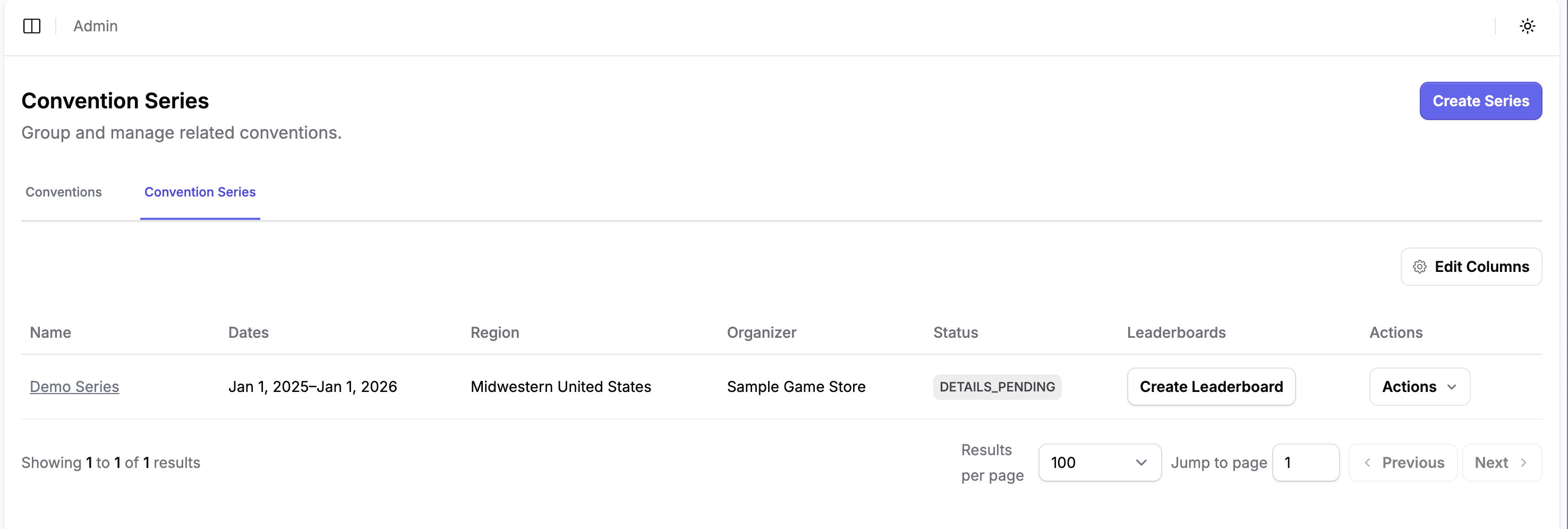
 * **Creating a leaderboard for your series**
On the series page, you can create a leaderboard with the "Create Leaderboard button"
* **Creating a leaderboard for your series**
On the series page, you can create a leaderboard with the "Create Leaderboard button"
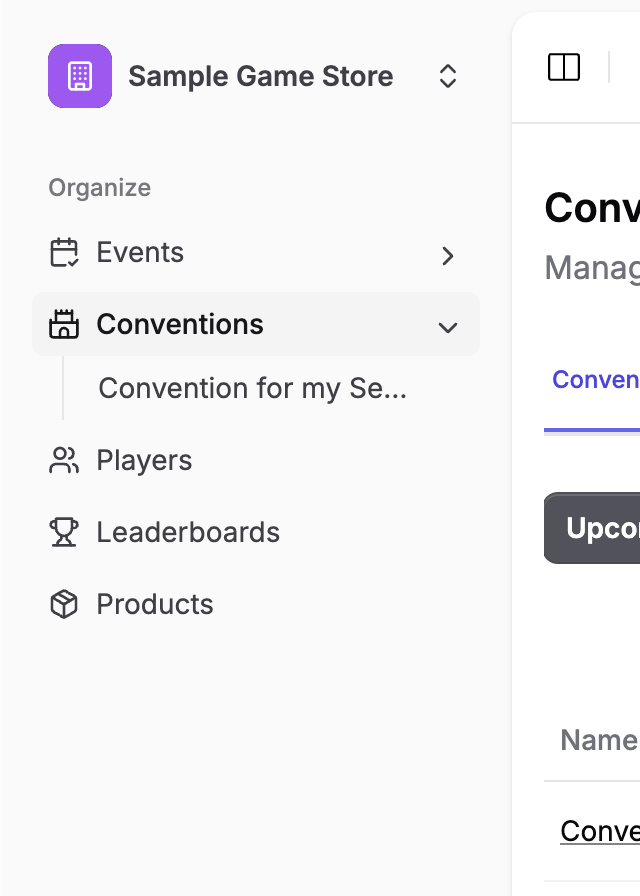
 This will add a new "Leaderboards" tab to your sidebar
 ### FAQs
* **What qualifies as a "convention"?**
We consider a convention to be anything that is a group of events over one or more consecutive days. If you wish to have multiple conventions linked together over many months, we can set up a "Convention Series" for you — please reach out to the team.
### Managing Event Staff
* **Assigning Event-Specific Roles**
From your convention's admin page, navigate to the "Convention Staff" tab. Here you can see all members with access to your convention and manage their permissions.
### FAQs
* **What qualifies as a "convention"?**
We consider a convention to be anything that is a group of events over one or more consecutive days. If you wish to have multiple conventions linked together over many months, we can set up a "Convention Series" for you — please reach out to the team.
### Managing Event Staff
* **Assigning Event-Specific Roles**
From your convention's admin page, navigate to the "Convention Staff" tab. Here you can see all members with access to your convention and manage their permissions.
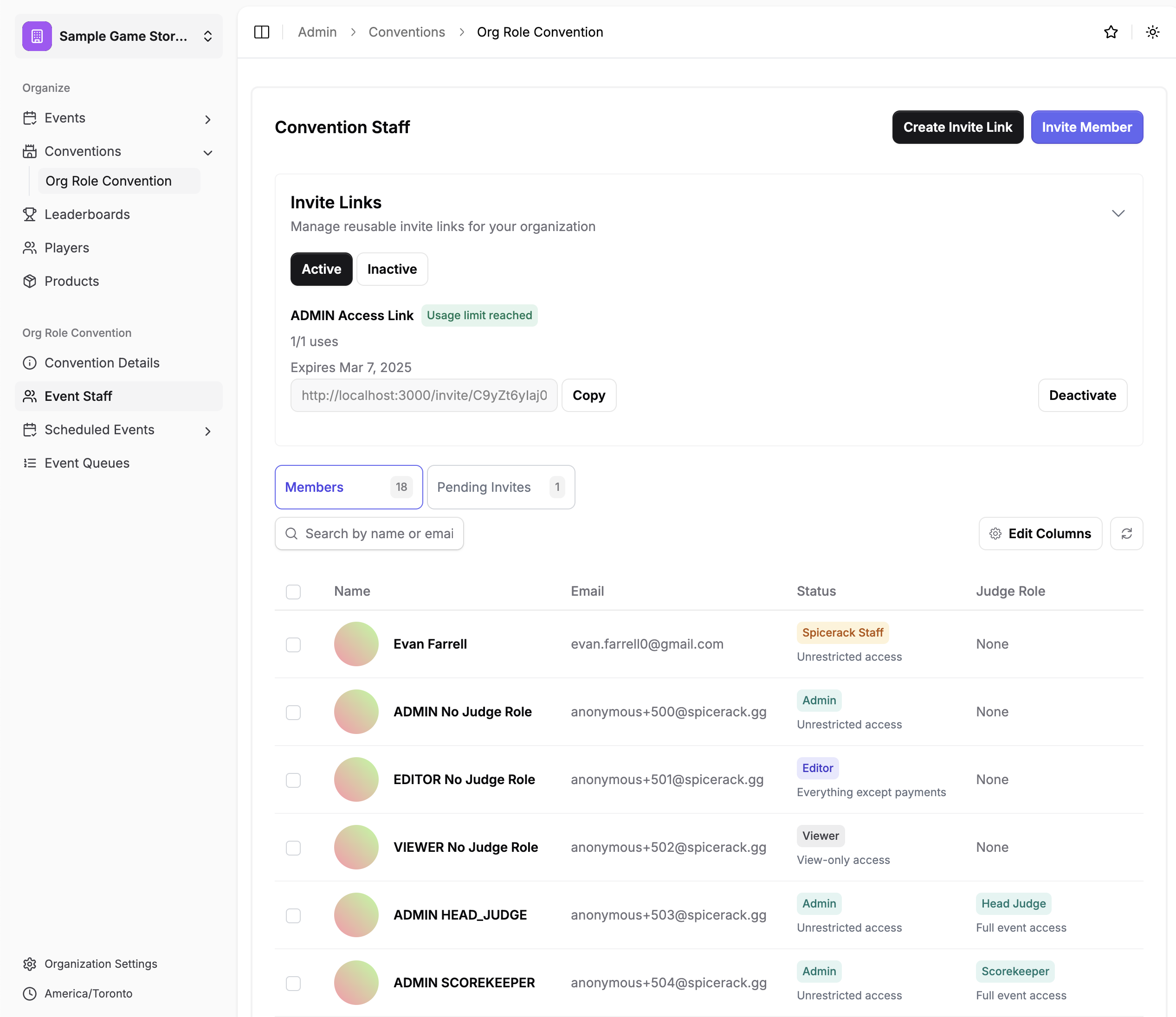 To assign event-specific roles:
1. Select the checkbox next to the staff member's name
2. Click the "Actions" dropdown menu at the top right
3. Choose "Assign events" from the dropdown options
To assign event-specific roles:
1. Select the checkbox next to the staff member's name
2. Click the "Actions" dropdown menu at the top right
3. Choose "Assign events" from the dropdown options
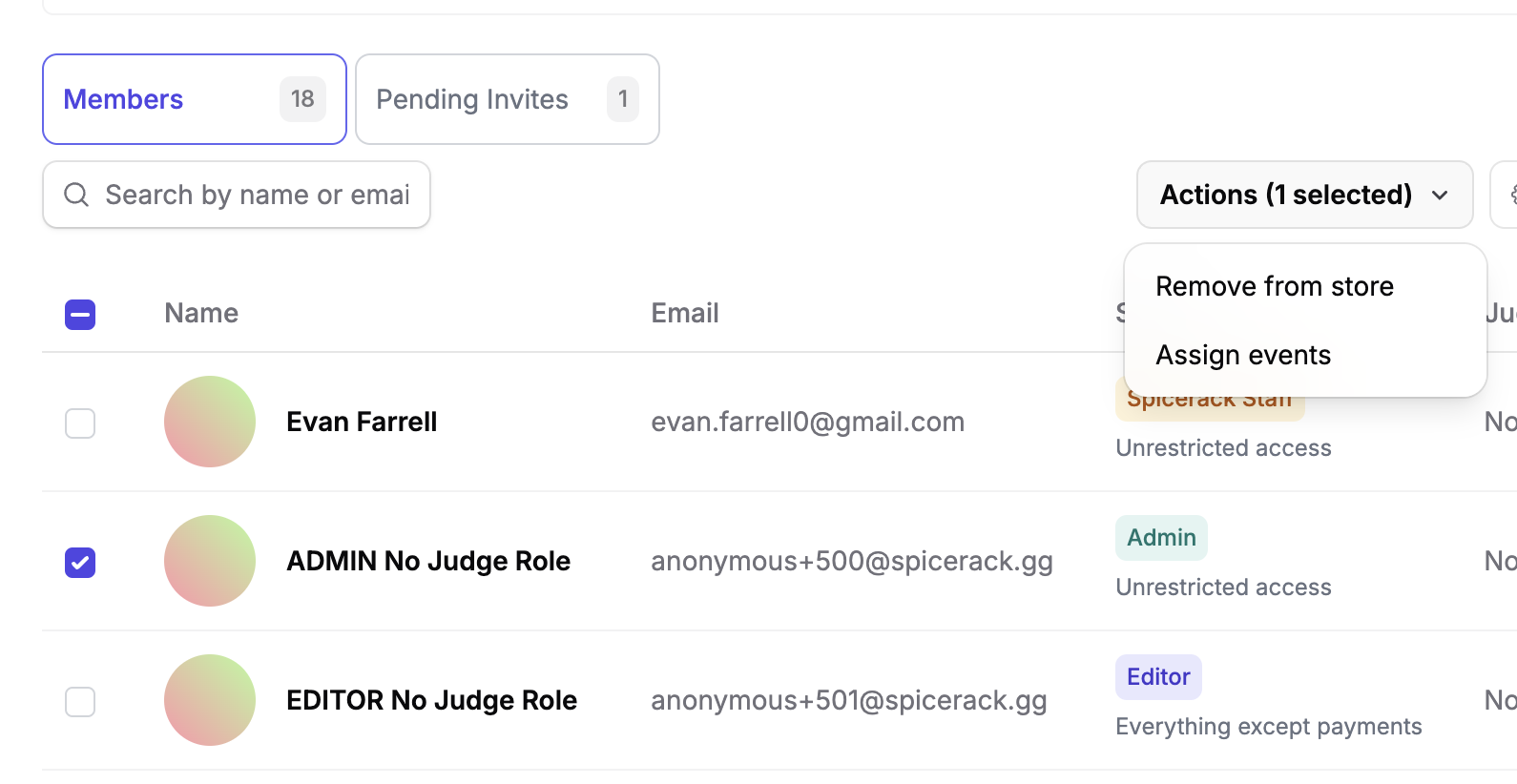 In the "Assign Events" popup that appears:
* Select a judge role from the dropdown (such as Head Judge)
* Choose which specific events to assign to this staff member
* Click Submit to save your changes
In the "Assign Events" popup that appears:
* Select a judge role from the dropdown (such as Head Judge)
* Choose which specific events to assign to this staff member
* Click Submit to save your changes
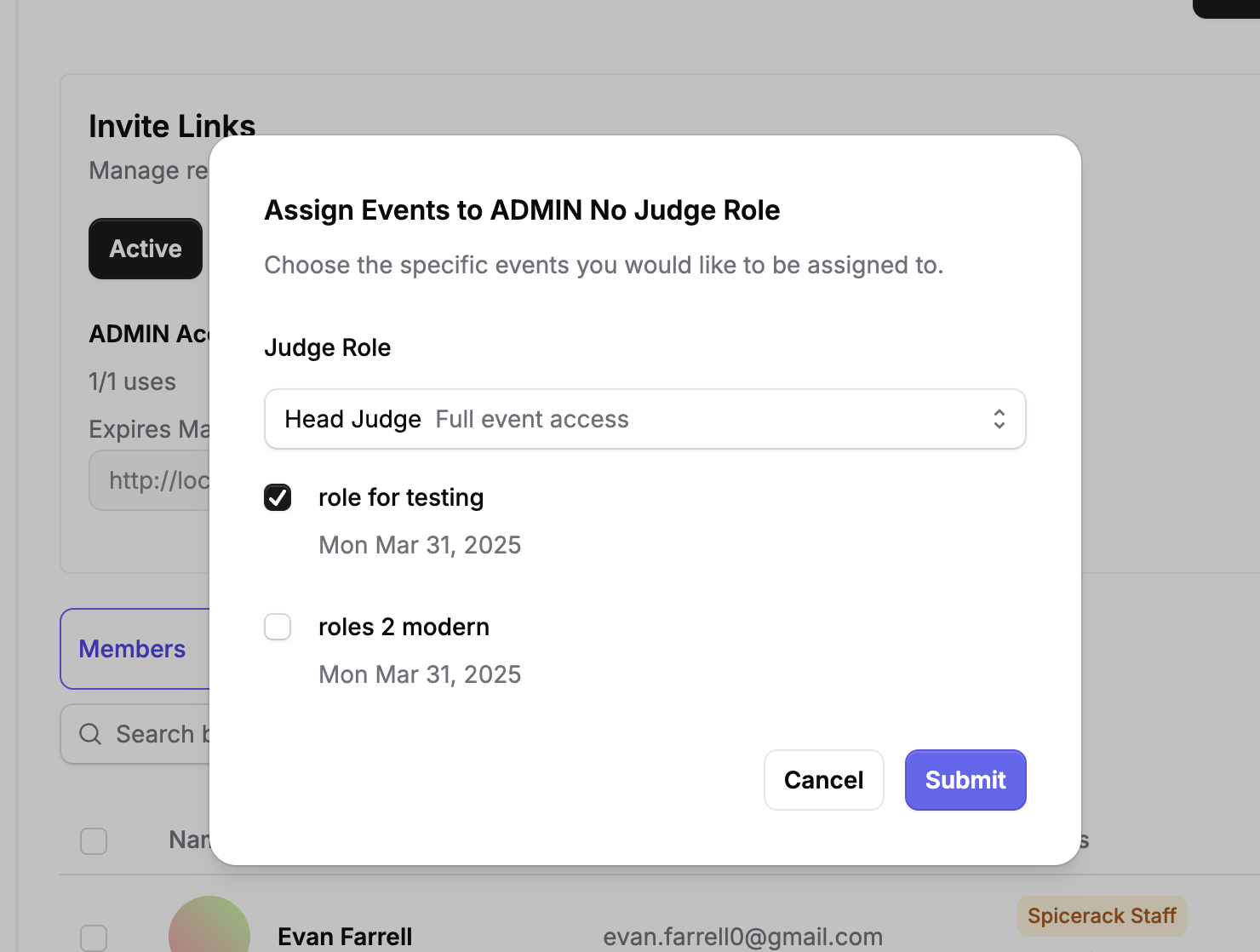 Staff members can have different roles for different events within your convention. For example, someone could be a Head Judge for one event and a Scorekeeper for another, giving you flexibility in organizing your event staff.